Upload your own sprites
Drag in a folder of PNGs, a sprite sheet or a single cutout and it lands in your library, ready to drop on the map.
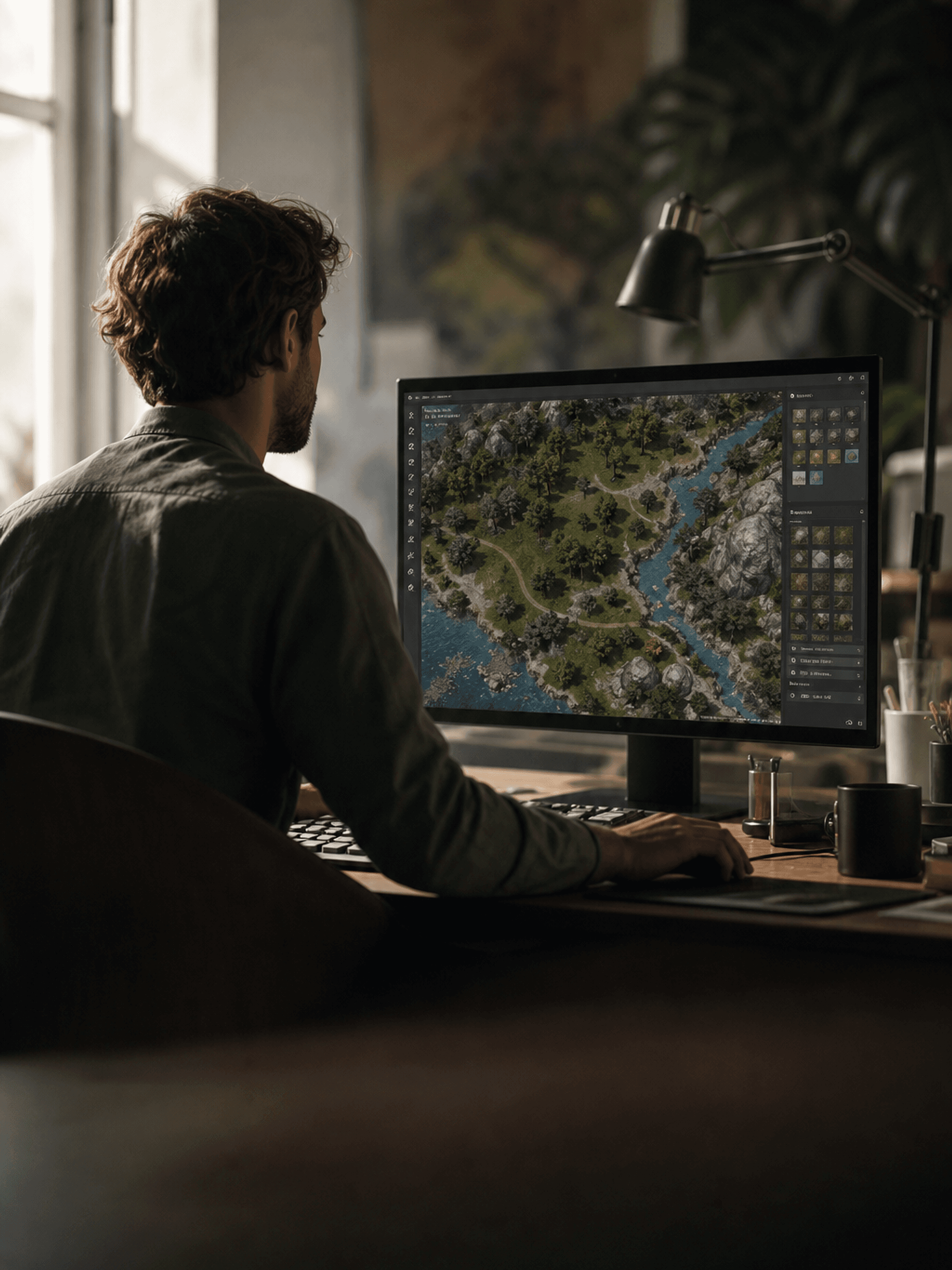
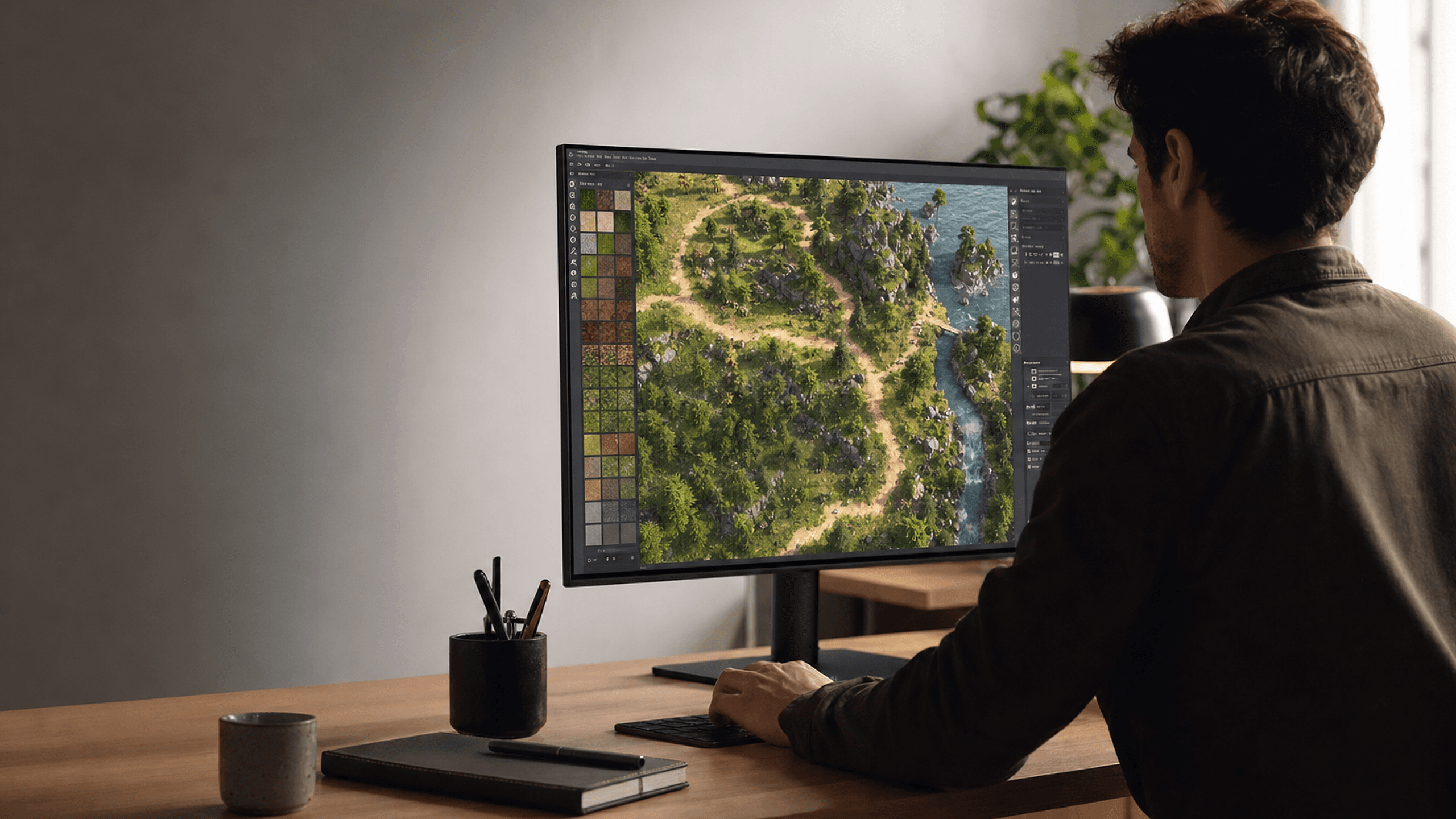
Map editor for game makers
Drop in any image, resize it to your grid, then paint paths, roads, trees, rocks and water straight onto the map. Export to the game design and image formats you actually ship with.
The canvas
Image editors think in pixels. Level editors think in tiles. This one does both, because a game map is usually half picture and half data until the moment you export it.
Scroll to build the map up one layer at a time.
Bring in a sketch, a screenshot, a render or a scanned drawing. It becomes the base layer of the map, not a locked background.
Scale the canvas, scale the image, or snap the whole thing to a new tile size. Everything you have already drawn moves with it.
Paths, roads, water, forest, rock. Place them as strokes or stamps directly on the map and keep editing after they land.
Terrain, detail and overlays stay on their own layers, so you can hide one, redraw it, or export it on its own.
Brushes & stamps
You are not fighting a generic shape tool to make a river look like a river. Each asset type knows what it is, so it keeps behaving like itself while you edit.
Drag a line and it becomes a road: width, curve and edge styling stay editable after you draw it.
Scatter with a brush for woodland, or place single trees where a landmark needs to sit exactly there.
Rock, scree and raised ground as stamps you can rotate, scale and recolor on the map.
Rivers follow a stroke, lakes and coast fill a shape. Adjust the banks without redrawing the body.
Square or isometric grid, snap on or off, per layer. Useful when half the map is art and half is level data.
Resize the canvas, the imported image or a single asset. Nothing is baked in until you export it.
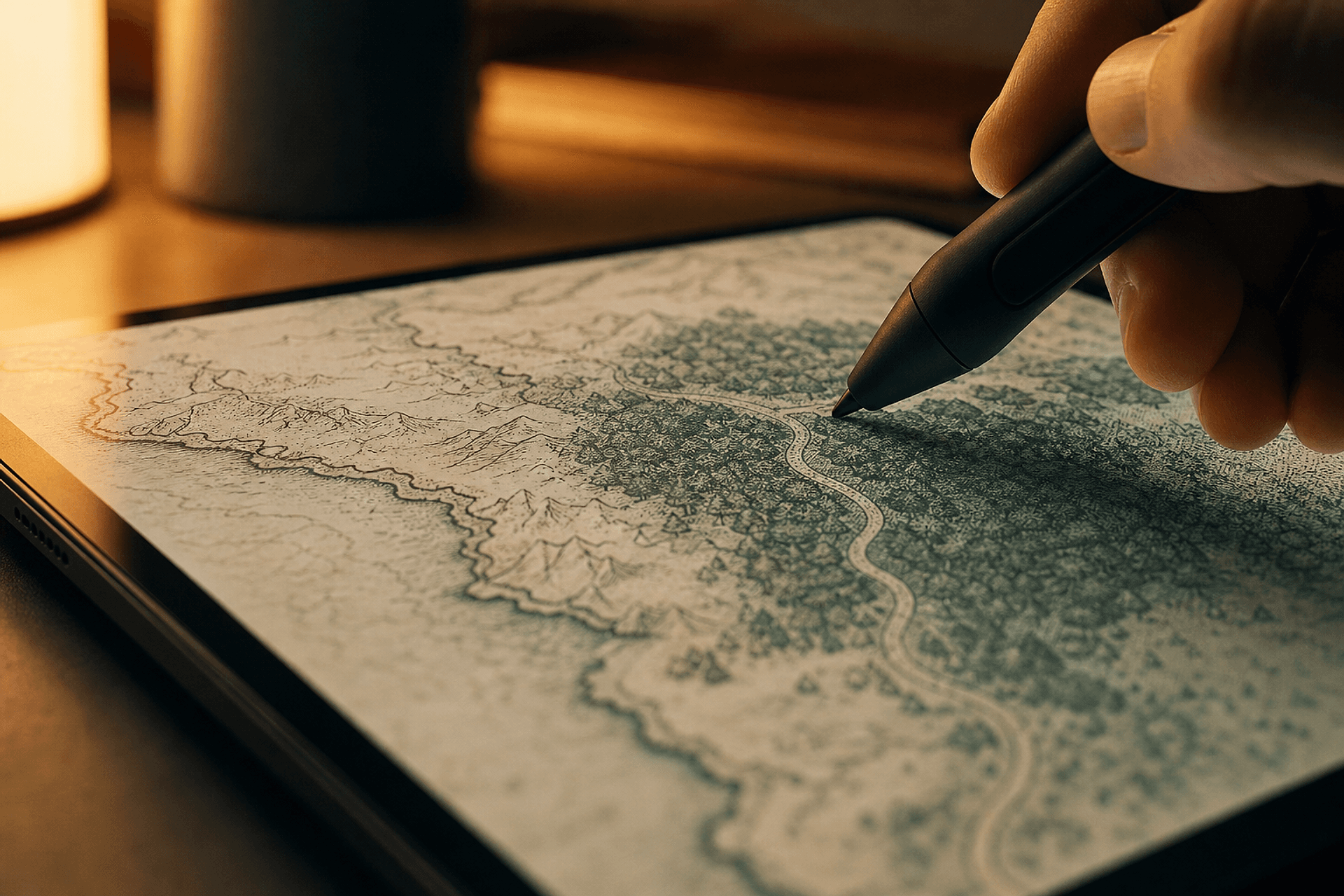
Sprite library
Upload a library of images and use them as sprites to decorate the map. Once a sprite is down, every transform you expect from an image editor is there, and every one of them is undoable.
Drag in a folder of PNGs, a sprite sheet or a single cutout and it lands in your library, ready to drop on the map.
Group sprites into sets, name them, search them, and reuse the same set across every map in the project.
A sprite drops onto the layer you are working on, so decoration never gets stuck inside the terrain.
Everything below works on one sprite or on a whole selection, with the keyboard or the mouse.
Click one sprite, drag a box around many, or shift-click to build a selection.
Drag it anywhere, or nudge left, right, up and down one pixel at a time with the arrow keys.
Type an X and Y in pixels when dragging is not precise enough, and align or distribute a selection.
Pull a handle to scale, hold to keep the aspect ratio, or set the width and height in pixels.
Spin freely, snap to set angles, or mirror a sprite horizontally and vertically.
Copy, paste and duplicate in place when a row of the same rock or tree has to repeat.
Stamp a new sprite down, or delete the selected one and everything else stays where it is.
Step back through every move, resize and rotation, then step forward again if you were right the first time.
Hold space or grab empty canvas to push the map around while you keep your tool selected.
Scroll or pinch to zoom from the whole world down to a single pixel, and fit the map back to the window.
Send a sprite forward or back so a tree sits in front of the rock instead of behind it.
Snap a sprite to the grid for level data, or turn snapping off when the placement should look hand‑made.
Pixel\u2011perfect scale
Load a map, load your sprites, and work at the map’s real pixel size. Scale, rotation and layer order are all adjustable in the smallest step that actually changes the picture.
Open an image and the canvas takes its original width and height in pixels, so nothing is resampled before you start drawing.
Image smoothing stays off on the canvas and on every export, so pixel art stays pixel art at any zoom.
Preset scales of 0.5x, 0.75x, 1x, 1.25x, 1.5x and 2x, plus −2px, −1px, +1px and +2px steps that resize the sprite by exact pixel amounts.
Rotate in 15° snaps, or by the angle that moves the sprite’s outer edge exactly one pixel.
Fit the map to the window, jump to 50%, 100%, 200% or 300%, zoom under the cursor with the wheel, and middle-drag to pan.
[ and ] move the selected object down or up one layer; hold shift to send it straight to the back or the front.
The whole editor is reachable without hunting through menus, and every edit is undoable and redoable.
Your placements are a file you own, and the picture comes out at the size you brought in.
Export every placement, its map, sprite name, x and y, scale, rotation and flips, as JSON you can read back in later.
Flatten the map and its objects to a PNG at the map’s original pixel size, with the selection outline left out.
Load a placements file back onto the same map and keep editing, with the object count always in view.
| Preset scale | Pixel step | |
|---|---|---|
| Steps used | 0.5x to 2x | −2, −1, +1, +2 px |
| Applies to selection | ||
| Keeps the sprite crisp | ||
| Best for matching a neighbor exactly |
Both work on the selected object, or set the size for the next one you place.
Workflow
The same four moves whether you are blocking out a prototype level or finishing a world map for release.
Export
A map is rarely finished in one place. Take it out as a picture for a pitch, as layers for your artist, or as map data for the build, from the same file, without redrawing it.
These are the format families Cartograph is being built around. Early access members get to say which ones land first.
Flatten the map and send it out as a picture, at the resolution you ask for.
Export the map as data your engine or level editor can read back in.
Keep the structure you drew with: separate layers, or the map cut into tiles.
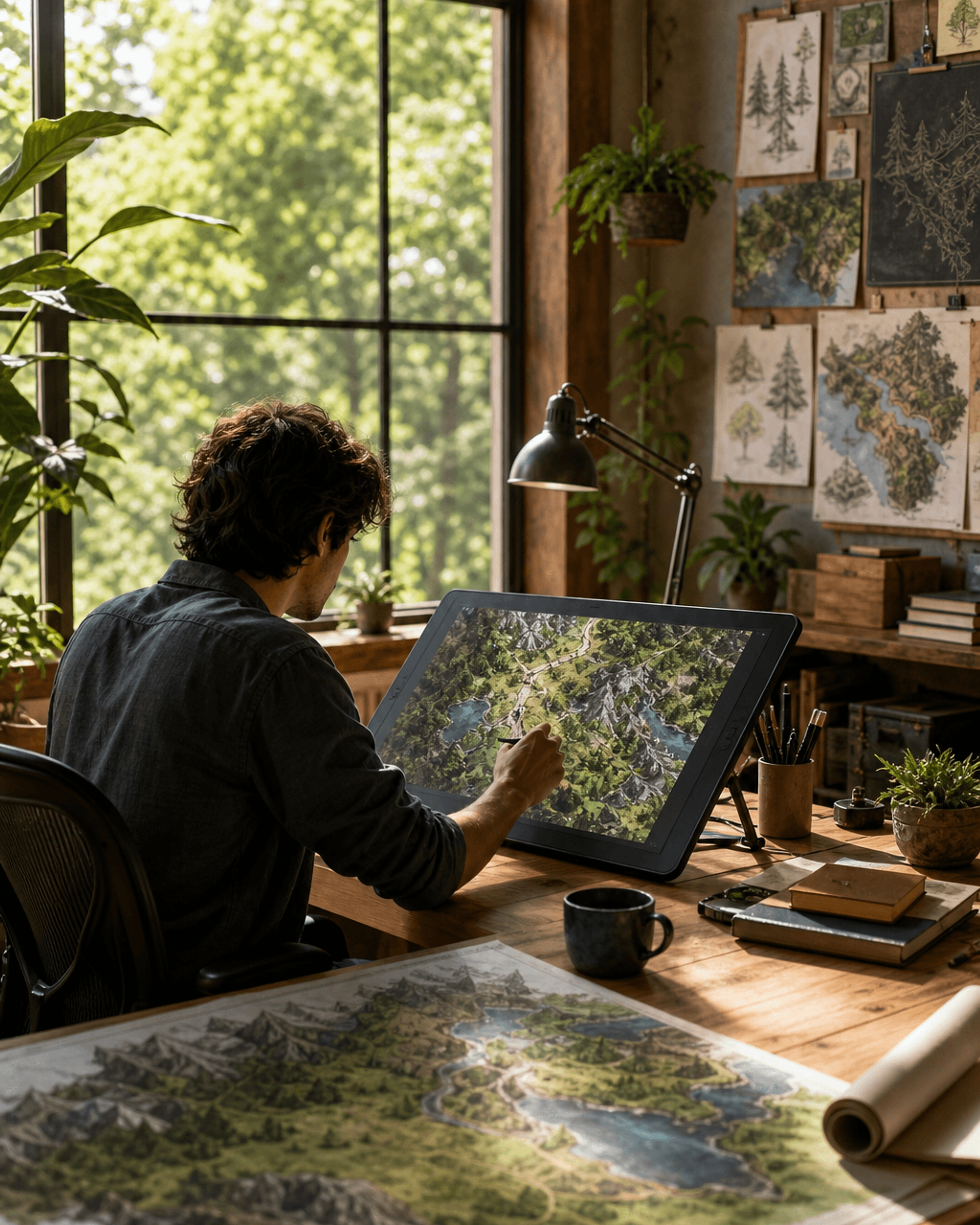
Who it’s for
Early access
Cartograph is being built with the people who will use it. Leave your details and the engine or pipeline you work in, and we will bring you in as early access opens, and weigh your formats first.